
|
 The functionality described in this
topic is only available when you mark Show
Advanced Options.
The functionality described in this
topic is only available when you mark Show
Advanced Options.
Add Content
Select Existing Probes
Select Probe Source
Select probes by Amplicon ID
This screen of the HaloPlex probegroup wizard is for selecting specific probes from an existing design or probegroup by entering the Amplicon IDs of the desired probes. SureDesign will then search the probes in the existing design/probegroup to locate the ones that match the specified Amplicon IDs, and add those probes to the new probegroup.
In the Targets text area, enter the Amplicon IDs of the probes that you want to add to your probegroup using either of the following approaches:
· Type or paste the Amplicon IDs directly into the text area. List one Amplicon ID per line.
· Click Upload to browse to a text file (*.txt) that lists the Amplicon IDs (one Amplicon ID per line).
The Amplicon IDs for an existing design are listed in the design's Amplicons.bed file. See Download design files for information on how to download this file for a particular design.
Click Next to continue to Screen 2.
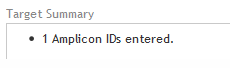
This screen provides a target summary that indicates the number of Amplicon IDs that you entered on the previous screen. Review the summary before proceeding. When you are finished, click Pick Probes. The program will search the selected probe source for probes with the Amplicon IDs that you entered.
Target Summary
To submit the probegroup for probe picking:
Click Pick
Probes.
A message box opens indicating the e-mail address where Agilent will
contact you when the probe selection job is complete. If desired,
you can enter additional e-mail addresses into the provided field.
Click OK
in the notification message to submit the probegroup to SureDesign.
Your submission is placed in the SureDesign job queue to await probe
selection.
The wizard takes you to the Finalize
step. Click Close to close
the wizard.