
|
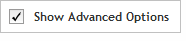 The functionality described in this
topic is only available when you mark Show
Advanced Options.
The functionality described in this
topic is only available when you mark Show
Advanced Options.
Add Content
Select Probe Source
Once you have chosen an option under Select probes from an existing Design or Probegroup from the Add Content step, you will be directed to the following Select Probe Source screen.
Complete the fields and selections in this step to designate the design or probegroup that you want to use the source of your probes. The design or probegroup can be from any of the SureDesign folders to which you have access, including the Agilent Catalog folder.
To select your probe source:
Use the radio buttons to select between using an existing Design or an existing Probegroup as the probe source. The Probe Source table will display a list of designs or probegroups for selection, accordingly.
In the Workspace drop-down list, select between Agilent Catalog and My Workgroup. The Probe Source table will only display designs or probegroups for your selection. If you selected My Workgroup, use the Select Folder dialog box to specify which workgroup folder contains the content (design or probegroup) that you want to add. If you selected Agilent Catalog in the Workspace drop-down list, the Folder field is set to the Agilent Catalog folder and cannot be changed.
In the Probe Source table, use the check boxes in the Select column to choose the design or probegroup that you want to designate as your probe source. Move your cursor over a Name to display a text box summarizing some of the details for that design or probegroup.
Click Next to continue.
The next step depends on what you selected on the previous Add Content screen. See the options below.
· Select probes for specific genes or regions - The Select probes for specific genes or regions screen opens to continue with your selections.
· Select probes by Probe ID - The Select probes by Probe ID screen opens to continue with your selections.